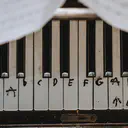
You want to know which chords fit in a key. You want to hear them, see them on a keyboard, and maybe build a progression you can play along with. The Interactive Chord Finder does all of that in your browser — no account, no download, no ads. This article walks you through every section of the tool so you can get the most out of it.
Choosing a Key and Scale
At the top of the page you will find two selectors: the root key and the scale.
The key selector shows all 12 chromatic notes. Click any note to set it as the tonic. The entire interface updates instantly — the piano, the scale notes, and all the chords recalculate to match your choice.
Below that, quick-access pills let you jump to the most popular scales: Major, Natural Minor, Harmonic Minor, Pentatonic, Blues, and the seven diatonic modes. For the full library, click “More Scales” to open a searchable dropdown with over 60 scales organised into categories like Diatonic Modes, Pentatonic & Blues, Jazz, World, and Symmetrical. Type in the search box to filter by name.
The colour scheme of the interface shifts to reflect the character of the selected scale. Major-like scales glow blue, harmonic and altered scales turn pink, dark and diminished scales go red, and pentatonic or exotic scales show teal.
The Piano Keyboard
A two-octave piano keyboard sits below the selectors. Notes belonging to the current scale are marked with coloured circles showing their note name. Non-scale keys remain dark. Click or tap any key to hear it — the app uses the Web Audio API, so no plugins are needed.
When you click a chord in the table below, its notes light up on the keyboard so you can see the voicing. During scale playback or sequencer playback, the keyboard highlights each note or chord as it sounds.
The Step Pattern
The Step Pattern section visualises the interval structure of your scale as a row of circles connected by lines. Each circle shows a scale degree note, and the labels between them show the step sizes: W (whole step), H (half step), m3 (minor third), or larger intervals for exotic scales.
Click the play button to hear the scale ascending, with an LED glow that follows each note in sequence. You can also click any individual circle to hear that single note and see it highlighted on the piano. This is a great way to train your ear to recognise the unique sound of each scale and mode.
Chord Type Toggles
The Chord Types section controls which chord extensions appear in the diatonic chords table. Each toggle card shows the chord type, note count, and formula:
| Type | Notes | Formula |
|---|---|---|
| Triad | 3 | Root + 3rd + 5th |
| Seventh | 4 | Triad + 7th |
| Ninth | 5 | 7th + 9th |
| Eleventh | 6 | 9th + 11th |
| Thirteenth | 7 | 11th + 13th |
Triads and sevenths are enabled by default. Toggle on the extended chords to see ninths through thirteenths — the rich voicings used in jazz, neo-soul, and R&B.
The Diatonic Chords Table
This is the heart of the tool. The table shows every diatonic chord built from the current scale. Each row represents a scale degree (I through VII), and columns show the chord extensions you have enabled.
Every chord cell displays:
- The chord name (such as Cmaj7)
- The Roman numeral (I, ii, iii, etc.)
- The chord quality (Major, Minor, Diminished, etc.)
- The individual note names
Click any chord to hear it and see its notes highlighted on the piano. On desktop, you can drag chords directly into the sequencer. On mobile, use the “+” button.
The Chord Sequencer
The sequencer lets you build chord progressions and play them back in time. Add chords from the table, insert rests for silence, and set a duration for each slot (1, 2, 4, 8, or 16 beats). Drag slots to reorder them.
Controls along the top let you:
- Set the tempo (BPM) and time signature
- Toggle loop mode for continuous playback
- Enable the metronome click
- Clear all slots to start over
Press play and the piano keyboard highlights each chord as it sounds. This is useful for hearing how a chord progression flows — try the classic I–V–vi–IV or experiment with modal progressions.
If you change the scale while chords are in the sequencer, stale chords show an amber indicator. Press “Update” to remap them to the new scale, preserving the degree and chord type.
Transposition
The Transpose section sits below the chord table and provides an instrument-based transposition calculator. Select a “from” and “to” instrument group — the tool covers C Concert, B♭, E♭, F, D, A, and G instruments — and it shows the transposed key with note and chord mapping tables.
For guitarists, capo buttons (frets 1–5) show which open chord shapes to play with a capo in any key. A “Transpose Sequencer” button applies the transposition to all chords in the sequencer at once.
PDF Export
Press the PDF button next to the scale heading (or use Ctrl+P / Cmd+P) to open the export dialog. You can include any combination of the scale overview, chord table, and sequencer progression. Choose paper size (A4 or Letter), orientation, and colour or black-and-white mode. Add a custom title and optional notes.
The PDF is generated entirely in your browser — no data is sent to a server. Once the PDF library is cached, export works offline too.
Putting It All Together
Here is a typical workflow:
- Select C Major to start with the most familiar key.
- Listen to the scale using the step pattern play button.
- Enable triads and sevenths in the chord type toggles.
- Click through the chords in the table to hear each one and see it on the piano.
- Build a progression in the sequencer — try I–vi–IV–V (C–Am–F–G) and press play.
- Transpose to a different key to see how the same progression works in G Major or E Minor.
- Export a PDF of your favourite scale and chords for offline reference.
Once you are comfortable identifying chords in a key, head over to the Chord Practice tool to drill them under time pressure with a metronome and optional MIDI keyboard input.
Where to Go from Here
New to music theory? Start with the Understanding the Major Scale article. For a deeper dive into the seven modes, read Modes Explained: Dorian to Locrian. If you want to understand how scales connect across all 12 keys, the Circle of Fifths Explained is a great next step. And when you are ready to test your knowledge, the Chord Practice tool lets you drill diatonic chords with real-time feedback.
Ready to explore? Open the Interactive Chord Finder and start playing.
Practice Chords
Drill chord recognition with a metronome, MIDI support, and score tracking.
Start Practicing